
Designing Games
Design edits the canonical game definition used by execution. Changes remain local to the open editor until Save changes stores a new revision.
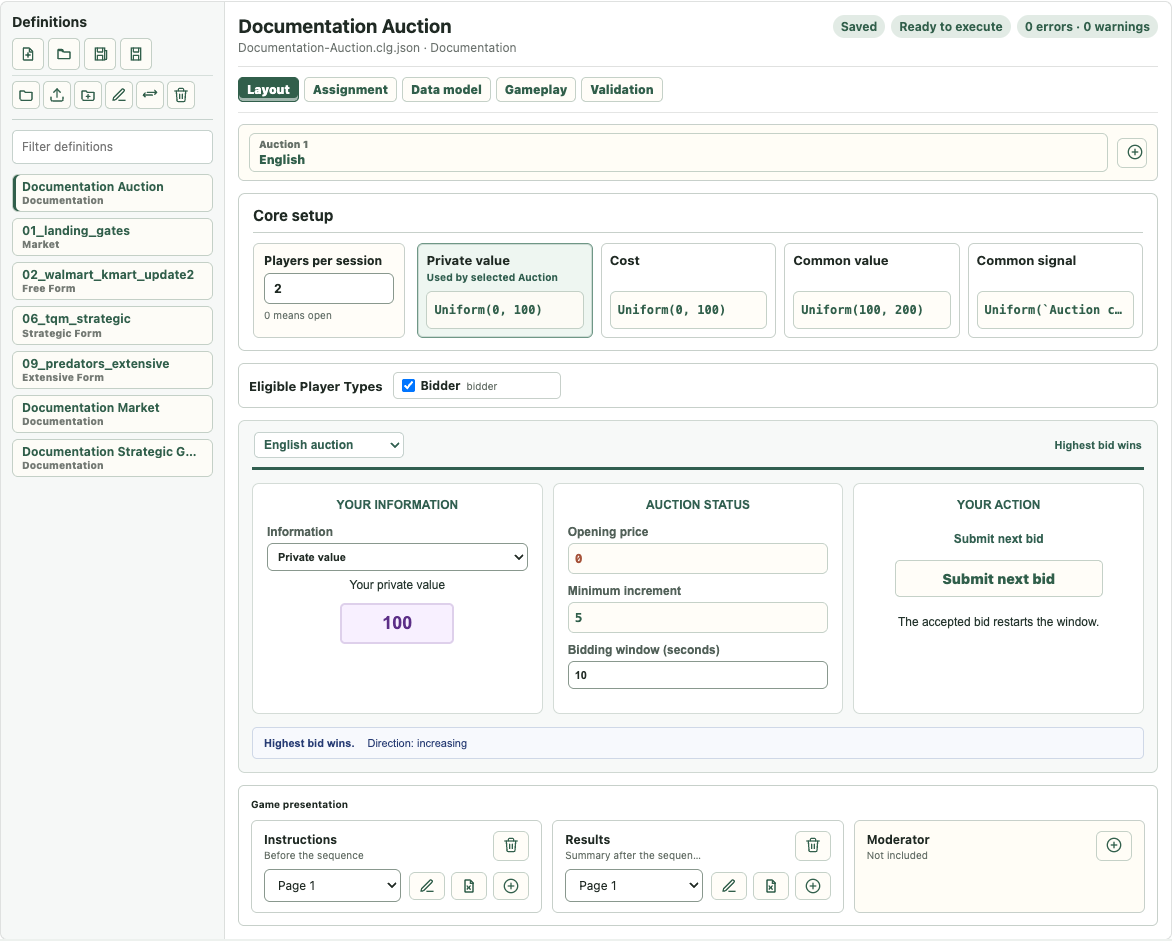
Definitions
The Definitions list is both a game selector and the main catalog-management surface. Selecting a game moves it to the top of the recent list and opens its Design. Use Filter definitions to narrow the list.
The first toolbar row contains document commands:
- New Game creates a definition in a selected catalog folder.
- Open Game opens an account-owned definition.
- Save As copies the current definition to a chosen name and folder.
- Save changes stores the current revision.
The second row contains catalog commands:
- manage catalog folders,
- upload
.clg.json,.mgd, or.xmldefinitions to an explicitly chosen folder, - add the selected game to one or more room destinations,
- rename, move, or delete the selected game.
Folder controls are also available in the New, Open, Save As, Upload, and Move dialogs. Root cannot be renamed or removed. A folder must be empty before deletion. Demo and its descendants are read-only and do not appear as Design destinations.
Shared Tabs
Available tabs depend on the game type:
- Layout is the main visual editor for the game mechanism.
- Assignment defines Player Types, participant allocation, rounds, randomization, and execution policies.
- Data model manages Variables, Choices, Functions, Finite Sets, Images, and value sources.
- Gameplay exposes detailed modules, Stages, transitions, and outputs where needed.
- Validation lists errors and warnings. Open navigates to the relevant editor location when possible.
Stages And Game Presentation
Presentation commonly uses Instructions, Results, and Moderator Stages. Their cards are arranged in three columns. A Stage may contain one or more Pages; a missing Stage is shown as Not included.
The Page controls are grouped below the Stage name. Use them to choose a Page, edit it, duplicate it, add another Page, or remove content. In Free Form games, process Stages use the same Page model.
Page Editor And Audience
The Page editor supports formatted text, Variables, Choices, Images, and tables. Selected text can be converted to a new Variable or Choice. The Convert control is available only while text is selected.
Audience appears directly below the toolbar. Each Assignment target can occur at most once and may be:
- Active: the Page contains the participant's primary interaction.
- Observe: the Page is visible as an observing view.
- Glance: the Page is a lower-priority view.
- no Audience rule: the Page is Passive for that target and is not shown.
For each participant, eligible Pages are ordered Active, Observe, then Glance. Pages with the same access level retain their order in the Stage. The current client displays the first eligible Page; the complete ordered list is preserved for a future tabbed presentation.
New lifecycle presentation Stages initially assign all existing Player Types as Active. Remove or change rules when a Page should target a narrower Audience.
Variables And Value Sources
A Variable may have one or more value sources, such as game initialization, Stage completion, transition, periodic update, or transaction output. The Variable inspector shows saved and pending Page changes. Add, edit, move, or remove sources there; Page-staged changes become canonical when Apply Page is used.
Use Find usages before changing or removing a shared definition. Deleting a value source removes the calculation, not every reference to the Variable.
See Data Model Settings Reference for every New Variable purpose, Calculated at destination, type, scope, and source action.
Images
Data model > Images is the central image library for the current game. It supports upload, preview, rename, replacement, usage inspection, and guarded removal. PNG, JPEG, GIF, and WebP files up to 5 MiB are supported.
Images are game-scoped: every Page in the same game can reuse them, but another game cannot see them automatically. The Page toolbar can select an existing Image or upload and immediately insert a new one. Uploading requires the current Design to be saved because the image bytes are stored in its canonical package.
In Market Game, Asset means a tradable game object. Presentation media is always called Image.
Formula Editor
Formula fields open a shared editor. Type directly or insert a Definition or Function; the pickers support filtering and grouped functions. Validation feedback is shown before Apply.
References use stable internal identity even when author-facing names change. Names containing spaces are rendered readably in Pages and represented safely in formulas.
See Formula Editor Reference for types, function groups, references, validation, and common formula patterns.
Saving And Execution
Leaving a modified definition offers Save, Discard, or Cancel. Discard restores the last saved revision, including its image library and Page content.
Execution requires a valid saved definition. Errors block starting the game; warnings may require confirmation. Starting a revised definition never changes a run already in progress.