
Moderator Workspace
The moderator workspace combines game design, classroom execution, and post-run analysis.
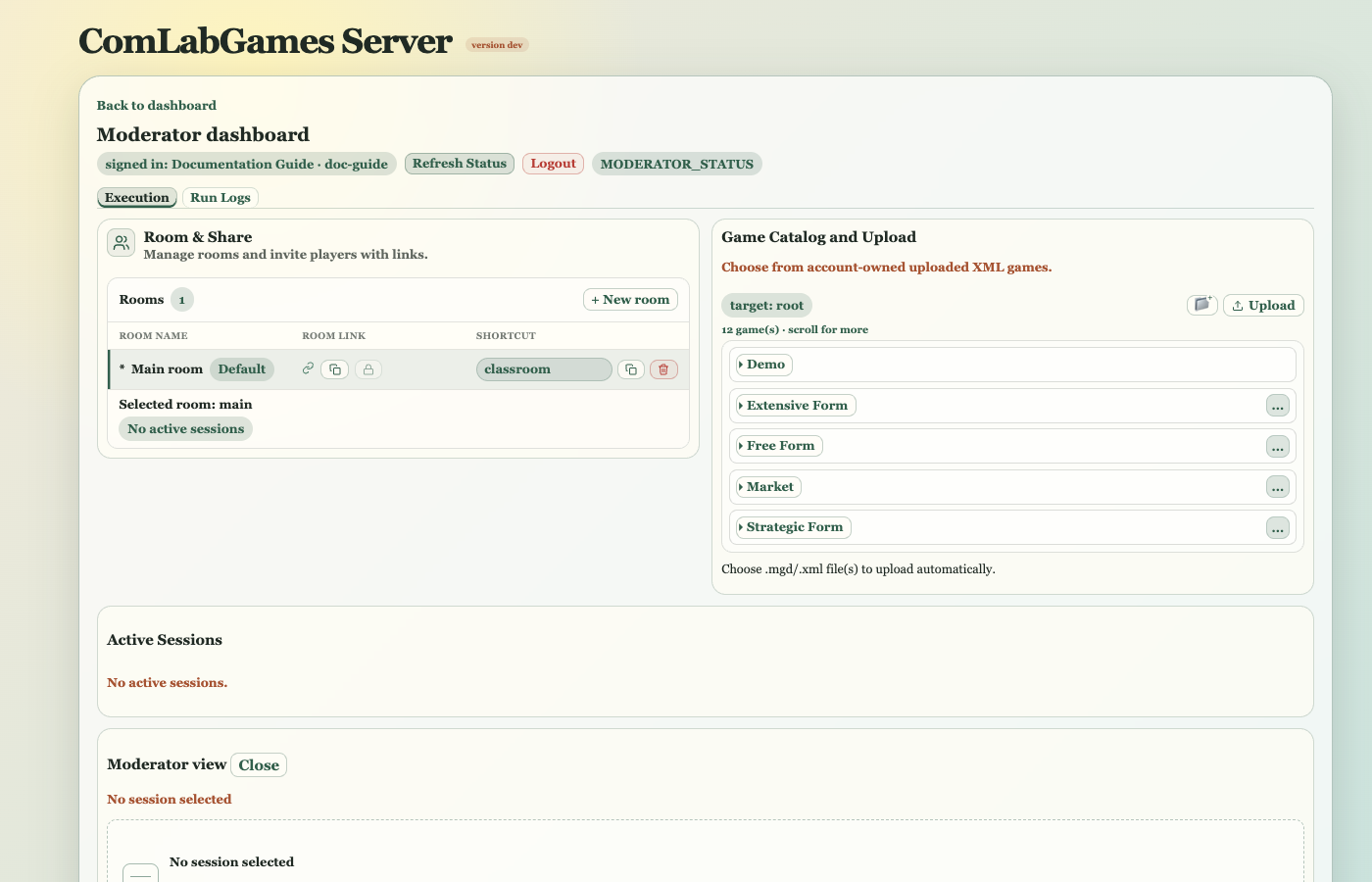
Workspace Tabs
- Design creates, opens, edits, validates, and manages definitions.
- Execution organizes rooms, starts games, and monitors sessions.
- Run Logs reviews live and completed runs.
Unsaved Design changes are protected when you change game or workspace. Save deliberately; validation failures that require attention are shown as dialogs and in Validation.
Basic Flow
- Prepare and save a definition in Design.
- Open Execution and add it to a room or game set.
- Start the game and share that room's link.
- Monitor Active Sessions and, when useful, Moderator view.
- Stop the open game when it should accept no more players.
- Review the run in Run Logs.
Rooms
A room is a player entry space owned by the moderator. The default room is main and cannot be removed. Create other rooms to separate classes, workshop groups, or tests from live use.
Rooms and Active Sessions occupy separate scrollable columns. A room may contain games directly or organize them into game sets. Add games can choose from the complete catalog, including predefined games under Demo.
Each game row provides direct controls:
- move up and move down before the game name,
- participant count when the definition permits adjustment,
- start or stop,
- open test client,
- change game set,
- remove from room.
Change game set can move a game to a room root or game set in any room. Removing a game from a room does not delete its catalog definition.
Starting And Stopping
Starting validates the saved definition and opens it for joins in the selected room. Errors block execution. The same catalog game cannot be started again while its current run is active.
Fixed-player games wait until the required number of players has joined. An adjustable participant field may be left open where the definition permits an open session size.
Stopping prevents new joins. It does not erase existing session history or change the definition snapshot used by an already created session.
Room Links And Shortcuts
Copy the full room link when players should join. A room can also reserve one unique, account-owned shortcut such as /r/classroom.
Shortcut names use lowercase letters, numbers, and hyphens, start and end with a letter or number, and cannot use reserved application paths. Copying or releasing a shortcut does not change the canonical room link.
Active Sessions

The compact Active Sessions list shows game, status, room, players, opening time, session ID, and event count. A filter appears when the list contains at least five sessions.
Unfinished sessions are shown first, ordered by ascending event count so the least-progressed session is easiest to notice. Completed sessions follow in newest-first order. The event count appears in parentheses beside the session ID; it is the ordering signal, not a participant-facing result.
Available icon actions depend on state:
- open the read-only Moderator view,
- finalize a nonterminal session,
- download its JSONL event log.
Moderator View
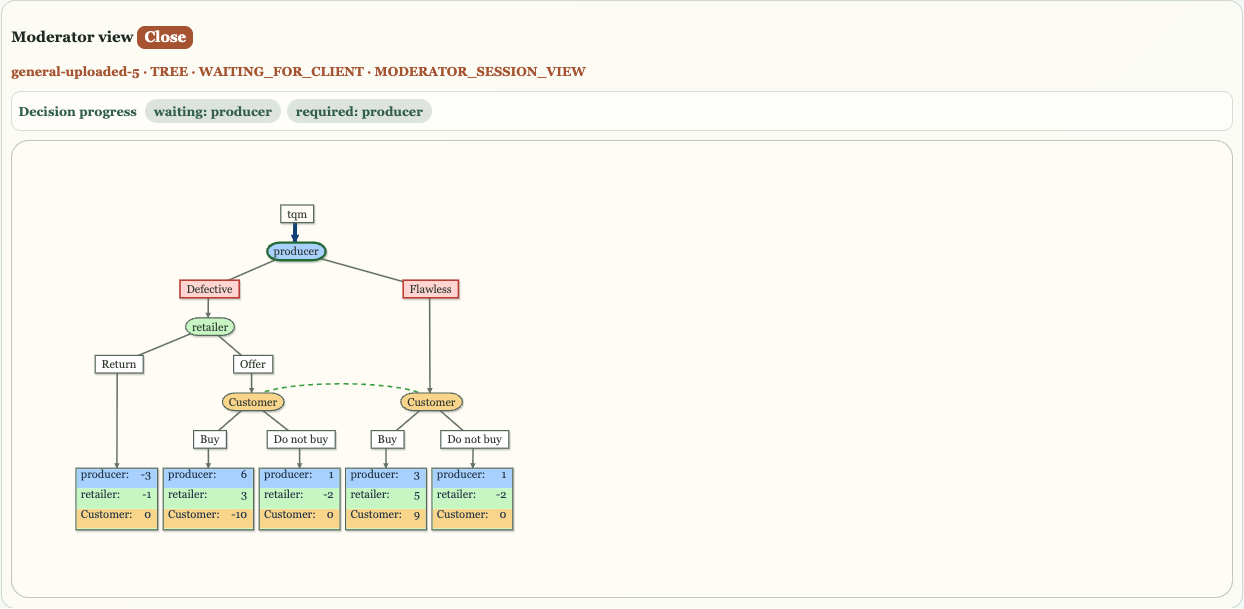
Moderator view is hidden until a session is selected and then opens full width below the two main Execution columns. Close it with the X control.
The view is read-only. It presents the current public tree or matrix state, the moderator Stage, or another available session snapshot. A game without a dedicated moderator view still remains observable through its session status and Run Log.
Session States
Typical states include waiting, running, completed, finalized, stopped, and abandoned after a server restart. A run or session marked abandoned is no longer live even if it had previously been open.
Catalog Management
Game catalog management now belongs to the Definitions toolbar in Design, rather than a separate Execution panel. There you can upload definitions, manage folders, add the selected game to rooms, rename it, move it, or delete it.
Account-owned definitions can be authored and managed. The Demo tree is read-only in Design but remains selectable from Rooms.
Admin Tools
Admin Tools is a collapsed secondary section. It is not part of the normal class workflow and should remain closed unless an administrative task specifically requires it.
Before Class
- Save and validate the intended game.
- Add it to a test room and start it.
- Open enough test clients for one representative path.
- Confirm the session appears and its status advances.
- Review the Moderator view and resulting Run Log.
- Stop the test game.
- Start the live room game and share its room link.
After Class
- Confirm sessions have completed or finalize those that should be closed.
- Stop games that should no longer accept joins.
- Review and export the run from Run Logs.
- Keep definitions in the catalog when they will be reused; removing them from Rooms is sufficient to declutter execution.
For exact Room controls, session ordering, fields, actions, and status interpretation, see Rooms And Sessions Reference.